 ChromaCut
Sometimes you don't want to remove a whole background — you want to remove one particular color. Maybe it's a green screen behind a sprite, a colored fill in a design you want gone, or a shade you'd like to recolor across an entire graphic. Doing that by hand with a selection tool is tedious and imprecise.
ChromaCut makes it a single click: you tell it the exact color, and it finds every matching pixel in the image at once — then you decide whether that color disappears or becomes something new.
Before you start
- A Mac running macOS 14.0 or later
- ChromaCut from the Mac App Store — $4.99, one-time, yours forever
- The image you want to edit (PNG or JPEG)
Open your image
Drag the image into ChromaCut, or choose File › Open Image. Everything is processed locally on your Mac.
Click the exact color you want to target
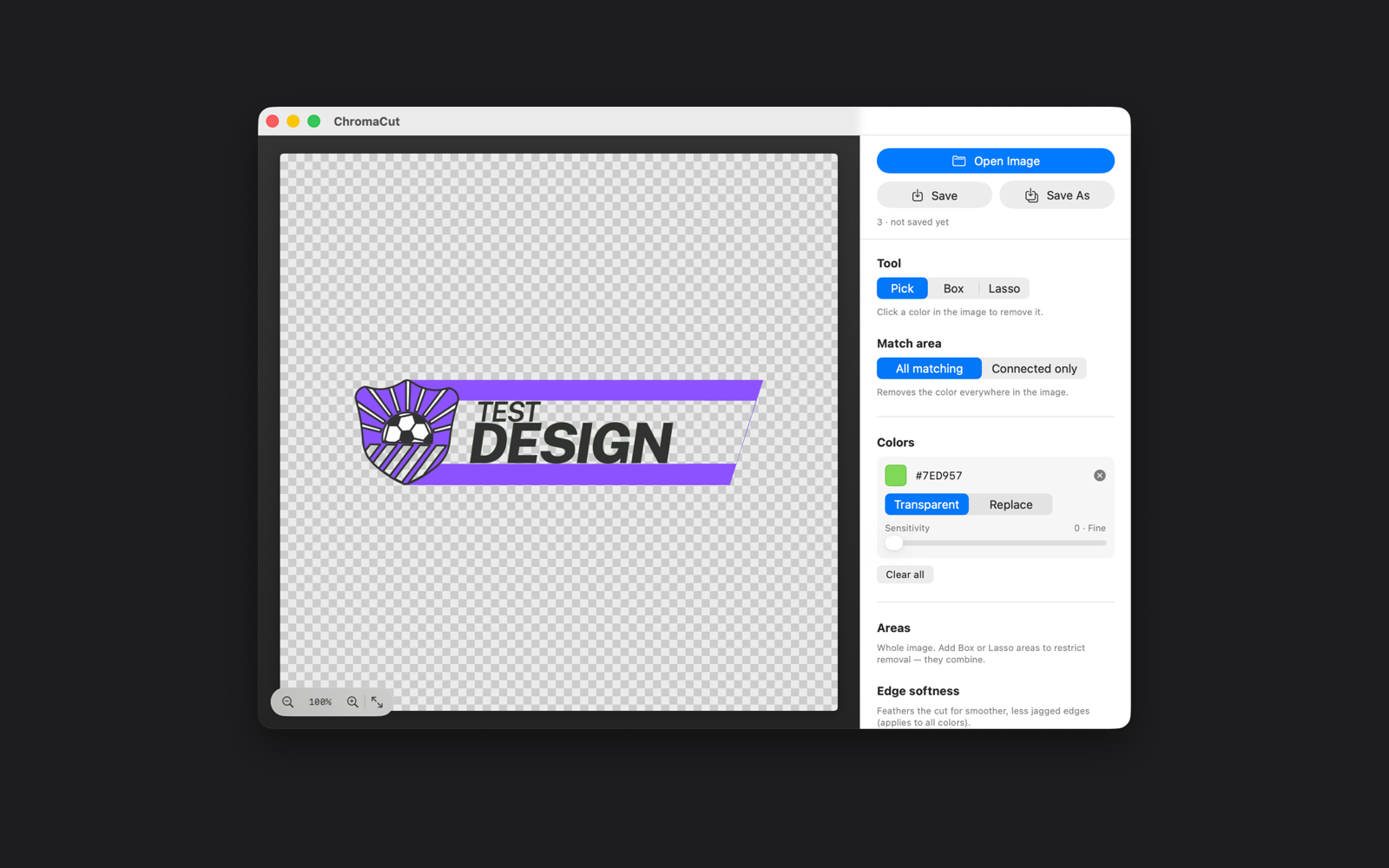
With the Pick tool, click the color anywhere it appears. ChromaCut's eyedropper grabs that precise value and selects every pixel that matches it across the whole image — no manual painting.
Remove it or replace it
For the color you just picked, choose one of two actions:
- Transparent — the color is knocked out, leaving see-through pixels.
- Replace — the color is swapped for any new color you choose, so you can recolor artwork or match a brand palette without redrawing anything.
Each color you target gets its own Sensitivity setting. Raise it to also catch nearby shades (useful for gradients or anti-aliased edges); lower it to stay tightly on that one exact color.
Limit the change to an area (optional)
If the same color appears in a spot you want to keep, restrict the edit. Switch to the Box or Lasso tool and draw around the region you want to affect — you can combine multiple areas. Or use Connected only to change just the contiguous patch you clicked.
Soften and export
Add a little Edge softness for smooth transitions, then choose File › Save. Export to PNG to preserve any transparency. If you only replaced colors and don't need transparency, any format works.
Remove or recolor any color in seconds
Precise, private, and native to macOS. A one-time $4.99 purchase — no subscription.
Get ChromaCut on the Mac App StoreFrequently asked questions
Can I remove more than one color at a time?
Yes. Click each color you want to target and set how it behaves — transparent or replaced — with its own sensitivity. ChromaCut applies them all together.
What's the difference between "All matching" and "Connected only"?
All matching affects the color everywhere in the image. Connected only affects just the single connected region you clicked, like a flood fill, so identical colors elsewhere are left untouched.
Will removing a color leave a jagged edge?
Turn up Edge softness (feathering) to blend the cut. Combined with per-color sensitivity, you get smooth, natural-looking results even on anti-aliased artwork.
Is this good for green-screen sprites and pixel art?
Very. Flat, consistent colors are the ideal case for ChromaCut — pick the green (or magenta) key and it's gone, without touching your artwork.