 ChromaCut
You've got a logo, but it came on a white (or solid-color) background — and now you need it to sit cleanly on a colored slide, a website header, a T-shirt, or a business card. The fix is to make that background transparent and save the logo as a PNG with an alpha channel.
Most "background remover" tools lean on AI to guess where your subject is. That works for photos of people, but it's the wrong approach for a logo made of clean, flat colors — you get fuzzy edges, halos, or bits of the mark erased. The reliable way to cut out a logo is to remove the exact background color instead. That's precisely what ChromaCut does.
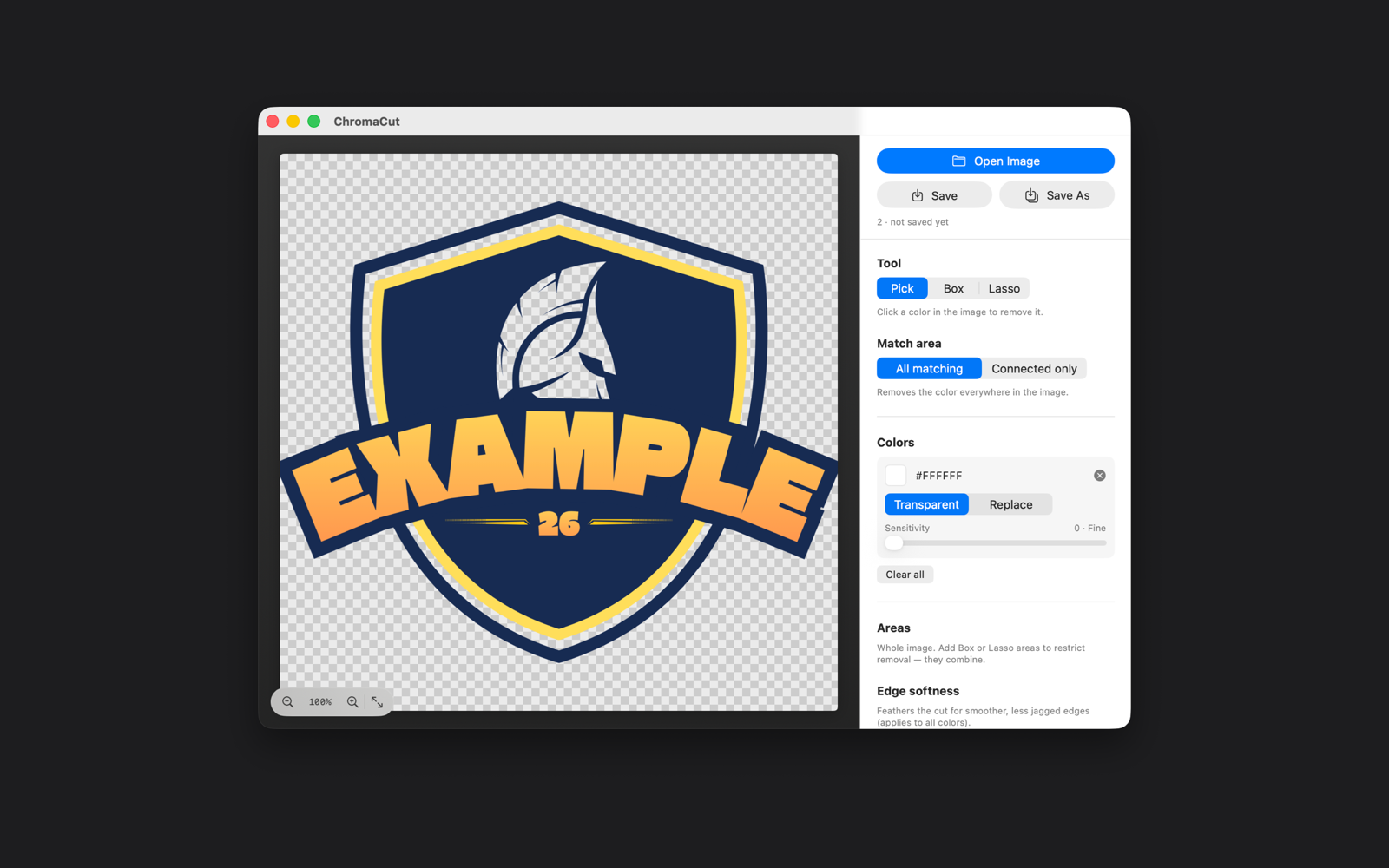
What you'll need
- A Mac running macOS 14.0 or later
- Your logo file (PNG or JPEG)
- ChromaCut from the Mac App Store — a one-time $4.99 purchase, no subscription
Open your logo in ChromaCut
Launch ChromaCut and drag your logo into the window, or choose File › Open Image. Your file stays entirely on your Mac — nothing is uploaded anywhere.
Click the background color
With the Pick tool selected, click anywhere on the white background. ChromaCut targets that exact color and makes every matching pixel transparent at once — so the background disappears from around the logo and inside any enclosed gaps, all in one click.
Fine-tune the edges
Logos are often saved as JPEGs, which adds faint off-white pixels around the edges. If you see a thin halo:
- Nudge Sensitivity up for that color so ChromaCut also catches those near-white shades.
- Add a touch of Edge softness (feathering) so the cutout blends smoothly instead of showing jagged pixels.
Zoom in to check the outline at full detail, and use unlimited Undo to experiment freely until it's perfect.
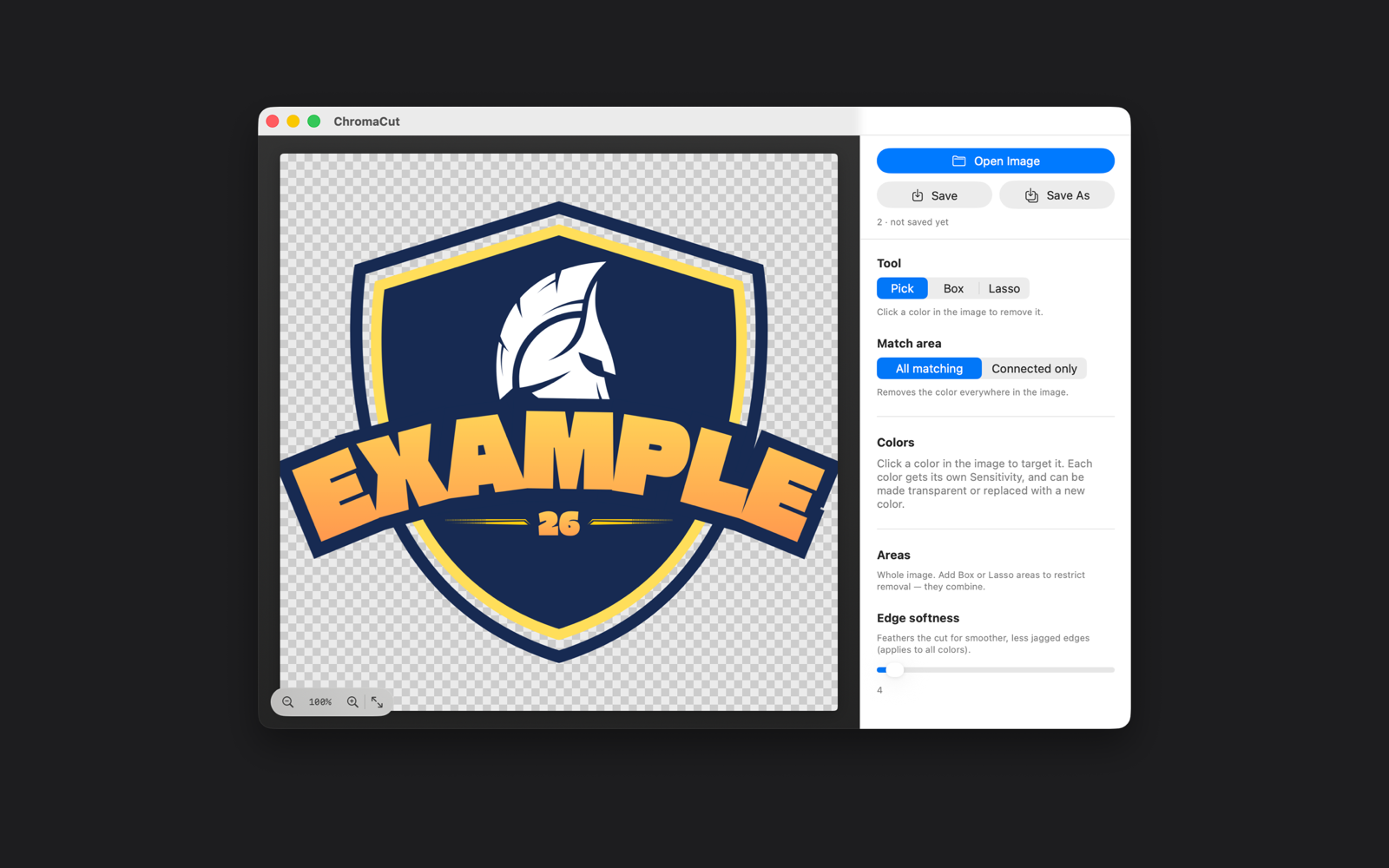
Export a transparent PNG
Choose File › Save (or Save As) and export as a PNG. PNG preserves the transparency; JPEG does not, so always use PNG for a see-through background. Your logo is now ready to drop onto any color, image, or product mockup.
Cut out your logo in the next two minutes
ChromaCut is a native Mac app — fast, private, and yours forever for $4.99.
Get ChromaCut on the Mac App StoreFrequently asked questions
Can I do this without Photoshop?
Yes. ChromaCut is purpose-built for exactly this and costs a fraction of a Photoshop subscription. There are no layers or masks to learn — you click the color you want gone.
My logo background isn't pure white. Will this still work?
Absolutely. ChromaCut removes whatever color you click, whether it's off-white, gray, blue, or a brand color. You can even target several colors in one image, each with its own sensitivity.
Does the transparency survive when I save?
Yes — as long as you export to PNG. PNG supports an alpha channel, so removed areas stay transparent. Saving as JPEG would fill them back in with white.
Do my images get uploaded to a server?
No. ChromaCut runs entirely offline on your Mac. Your logo never leaves your device.